MRCH · Tools

Is this image big enough to print?

Enter the image's pixel dimensions and the size you intend to print it at. The math runs in your browser — nothing you type or upload leaves this page.

Check it

Local input, instant result.

Type the numbers, or pick a file to read its pixel width and height — the file itself is never uploaded, sent to a server, or attached to any analytics event. Results update as you type and are announced for screen readers.

Image, in pixels
px
px

The file is read in your browser only to measure its pixel width and height. It is never uploaded, sent to a server, or logged — nothing about it leaves this device.

Target print size
in
in

Width

300 PPI

Height

300 PPI

Effective (limiting axis)

300 PPI

300+ PPI. Sharp even for fine detail and small text.

Aspect ratio matches the print area — no crop or letterbox needed to fill it.

What the numbers mean

Effective resolution and aspect fit, in plain terms

Effective resolution is how many of the image’s pixels land in each inch of the print once it is scaled to your target size: pixels divided by inches, or PPI (pixels per inch). Centimetre inputs convert at exactly 2.54 cm per inch before that division — nothing else changes the math. A wide image printed small has more pixels per inch than the same image printed large; shrink the print size and effective resolution goes up, enlarge it and effective resolution goes down.

Width and height are checked separately, and the smaller of the two — the limiting axis — is the number that actually caps how sharp the print can look. There is no universal minimum PPI that applies to every product or printer; the bands this tool reports are an honest sketch, not a spec any print provider publishes.

Aspect fit compares the image’s width-to-height ratio against the print area’s. When they differ, something has to give: fitting the image to fill the print area crops whatever sticks out, and fitting it to stay fully inside the area leaves empty margins on two sides (letterboxing). Matching the ratio before you print avoids both.


Worked examples

Same image, two print sizes, two different results.

Printed small

A 1200×1200px image printed at 4×4in comes out to 300 PPI. 300+ PPI. Sharp even for fine detail and small text.

Printed large

The same 1200×1200px image printed at 8×8in — double the size — drops to 150 PPI. ~150–225 PPI. Usable for bold shapes and large type; fine detail is risky.

Same file, same pixel count — doubling the print dimensions halves the effective resolution. That is the whole mechanism this tool checks.

What this cannot certify

A number, not a stamp of approval.

  • Not a pass/fail grade

    There is no single minimum resolution that works for every product, printer, or fabric. This tool reports effective PPI and an honest quality band — never a guaranteed pass, approval, or certification.

  • Not what editing DPI metadata does

    Changing the DPI number saved in a file's metadata does not add real pixels. A 72 DPI file relabeled as 300 DPI is still exactly as many pixels as before — this checker looks at actual pixel counts, not a metadata field a photo editor can rewrite in one click.

  • Not a color or durability test

    A screen preview, canvas mockup, or this calculator cannot prove ink-on-fabric color match, hand-feel, or wash durability. No screen can test that — only a printed sample can.

Product-specific requirements

Every garment and printer draws the line differently

A hairline logo on a hat behaves nothing like a full-bleed poster — small text and fine detail need more effective resolution than a bold shape at the same PPI, and the requirement changes again by product, print method, and print provider. This page does not publish one number as a universal minimum, because no honest one exists.

For MRCH listings specifically, the next step is the actual canvas: it shows your art on the real garment and the real print area, not a generic rectangle. See print quality for what a preview can and cannot prove, or open MRCH and place the file on the blank you are selling.

FAQ

What counts as "good" resolution for printing on a t-shirt?

It depends on the print area size, the art itself (bold shapes tolerate lower PPI than fine text or detail), and the printer. This tool reports effective PPI and an honest quality band — not a single pass/fail number, because no universal minimum applies to every product.

Does raising a file's DPI setting fix low resolution?

No. DPI is metadata a photo editor can rewrite freely; it does not add real pixels. A 1200×1200px image is still 1200×1200px whether its saved DPI says 72 or 300. This checker only looks at actual pixel counts.

Do my numbers or my image ever get uploaded?

No. Every calculation runs in your browser. If you use the optional file picker, the file is read locally only to measure its pixel width and height — the file itself is never sent anywhere.

Does a canvas preview or this calculator guarantee print quality?

No. Both can flag placement, scale, and effective resolution problems before you print, but neither tests ink-on-fabric color match, hand-feel, or wash durability. Only a physical printed sample proves that.

What if my image and print area have different aspect ratios?

Fitting the image to fill the print area will crop whatever doesn't fit; fitting it to stay fully inside will add empty margins on two sides (letterboxing). Recompose the art or adjust the target size to match ratios and avoid both.

Check placement on the real garment next

This calculator is a pixel sketch. MRCH's canvas shows your art on the actual blank and the actual print area before you publish. Free to install.

MRCH App Store screenshot: Build your brand with t-shirt, hoodie, cap, and tote mockups
MRCH App Store screenshot: Set a sale price, see profit, and publish a live store
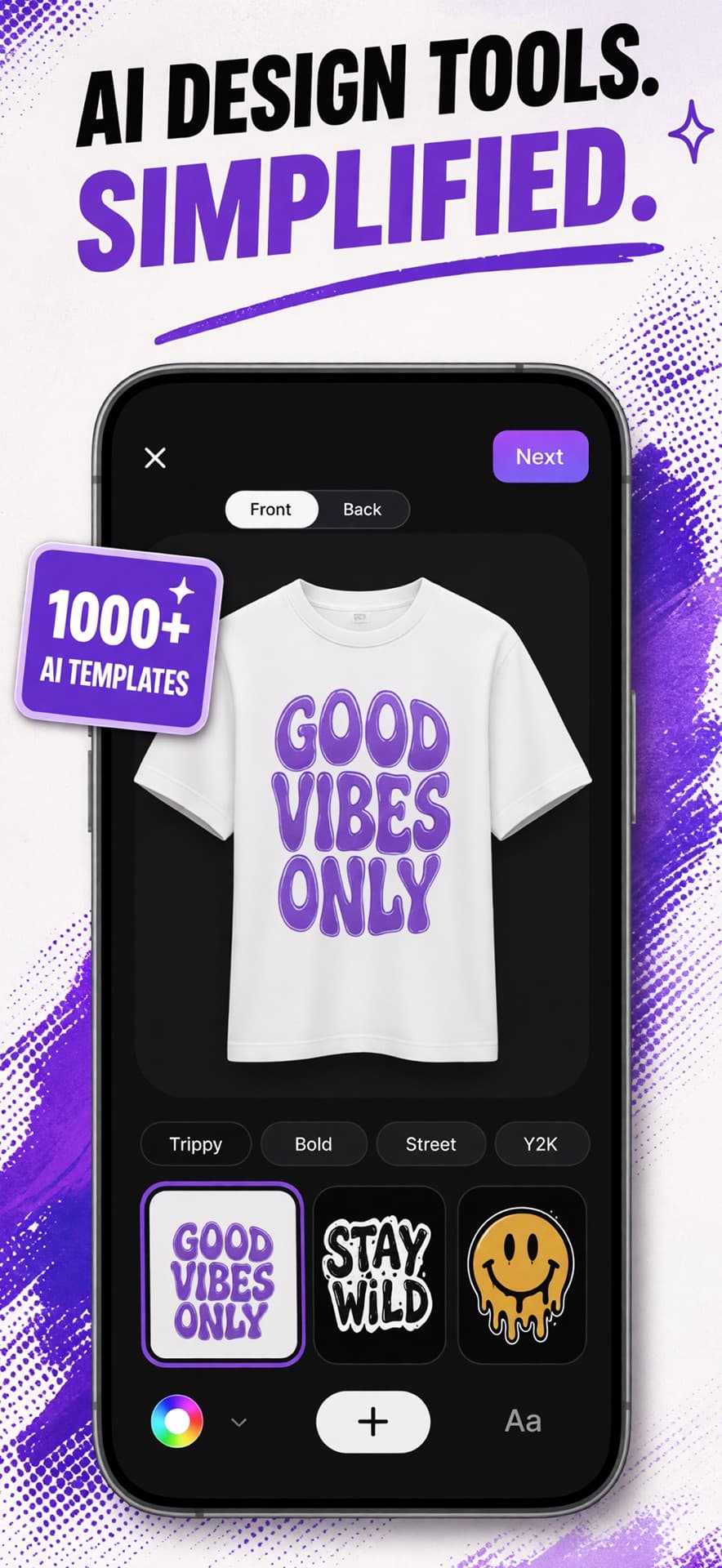
MRCH App Store screenshot: AI design tools on a t-shirt canvas with style templates
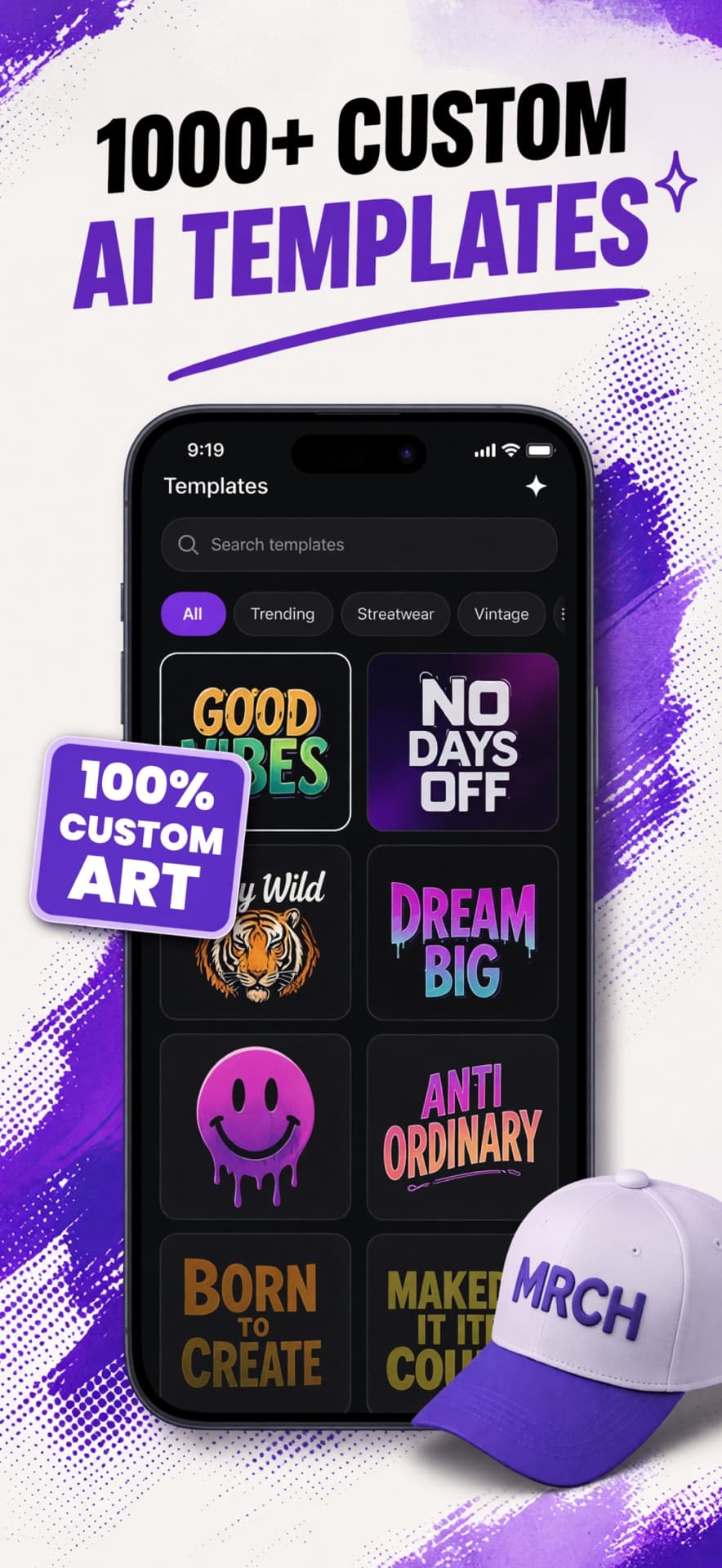
MRCH App Store screenshot: Browse custom AI merch templates
MRCH App Store screenshot: Preview a design on tees, hoodies, hats, and totes